 Help Center
When merging duplicate patients, a new patient account will be created containing all of the appointments, documents, photos, financial and chart notes from both patients and the two merged accounts will be removed from the database. The new merged patient will have a new Patient ID.
If more than two records exist for the same patient, it will be necessary to merge them together two-at-a-time until all records are merged.
To merge duplicate patients follow these steps:
- Go to Practice > Settings > Patients > Merge Patients
- Select the duplicate patient records in the Patient #1 and Patient #2 dropdowns
- It is important to pay attention to Chart ID as it is possible to select the same record in both dropdowns
- Select the correct demographic and contact information that should be imported to the merged patient by clicking on the Patient Demographics, Address, Phone, and Email boxes.
- If the information on one patient is confirmed to be correct, click the 'All' button to import that patient's demographics.
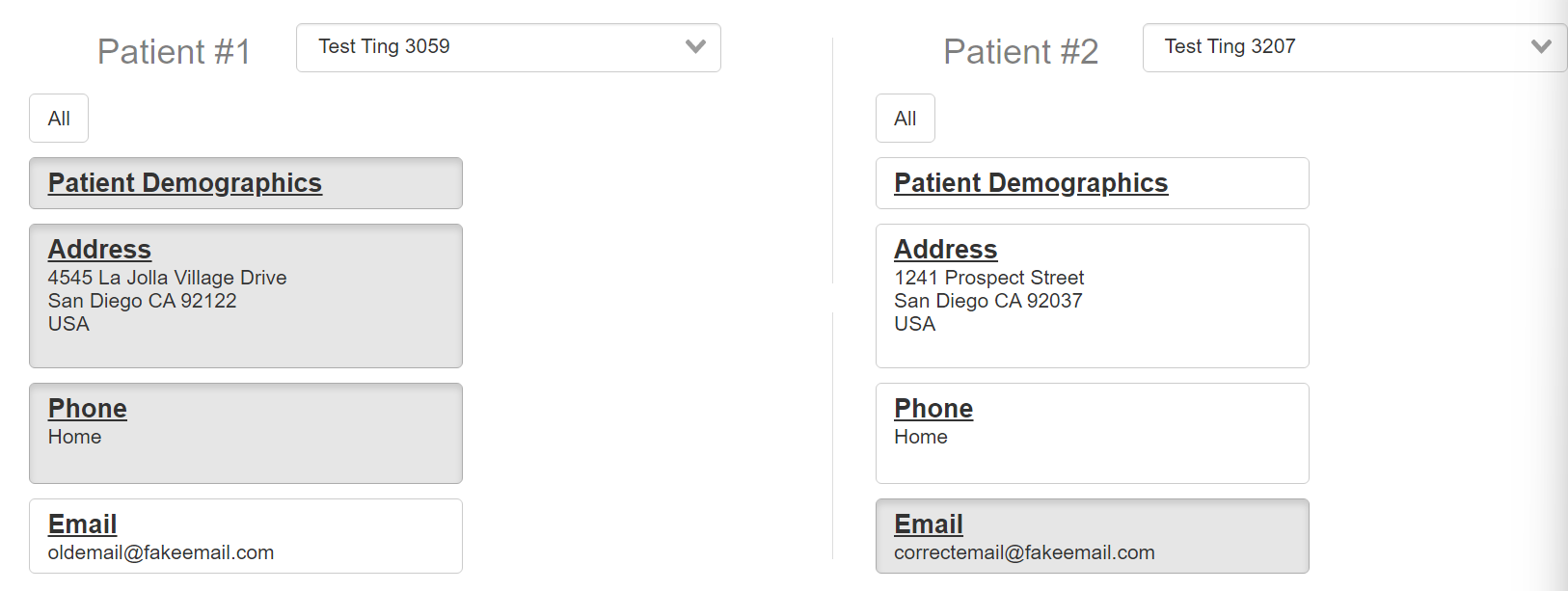
- If the information on one patient is confirmed to be correct, click the 'All' button to import that patient's demographics.
- Click
 to create a new patient record containing the selected demographics and the appointments, chart notes, photos, and financials of both patients.
- From the previous image, patients 3059 and 3207 have been merged together into patient 3259. Patient 3259 contains all of the demographic and contact information from 3059 except for the email which was imported from patient 3207.
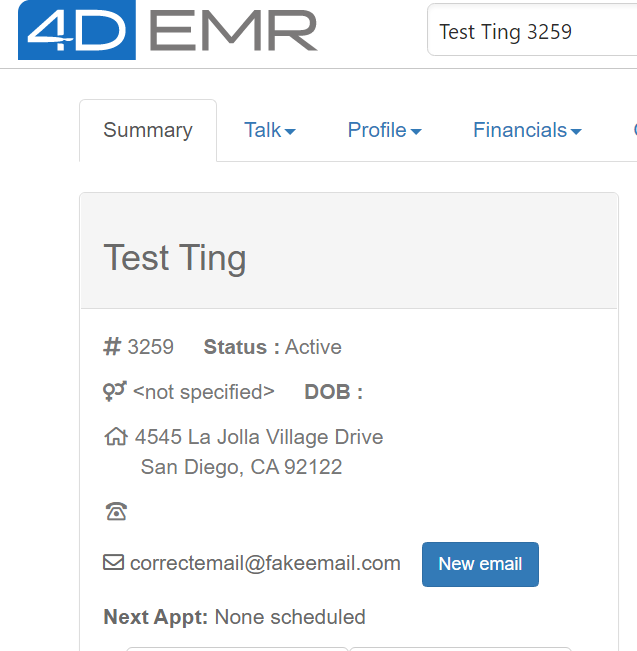
- From the previous image, patients 3059 and 3207 have been merged together into patient 3259. Patient 3259 contains all of the demographic and contact information from 3059 except for the email which was imported from patient 3207.