 Help Center
The Google Calendar Sync can be used to sync your appointments to your mobile device.
Note: 4D EMR has the option to sync patient names on appointments. This should only be enabled if you have a paid Google Calendar account and a signed BAA agreement with Google. Syncing patient identification information without a paid Google Calendar and a signed BAA agreement with Google is a HIPAA violation.
To configure the Google Calendar Sync follow these steps:
- Click on Practice > Settings > Integrations and then click on the Google Calendar Sync tile
- In the Add Calendar drop down select the 4D EMR Calendar to be synced to Google
- Click "Sign in with Google"
- Follow the prompts to log into your Google account
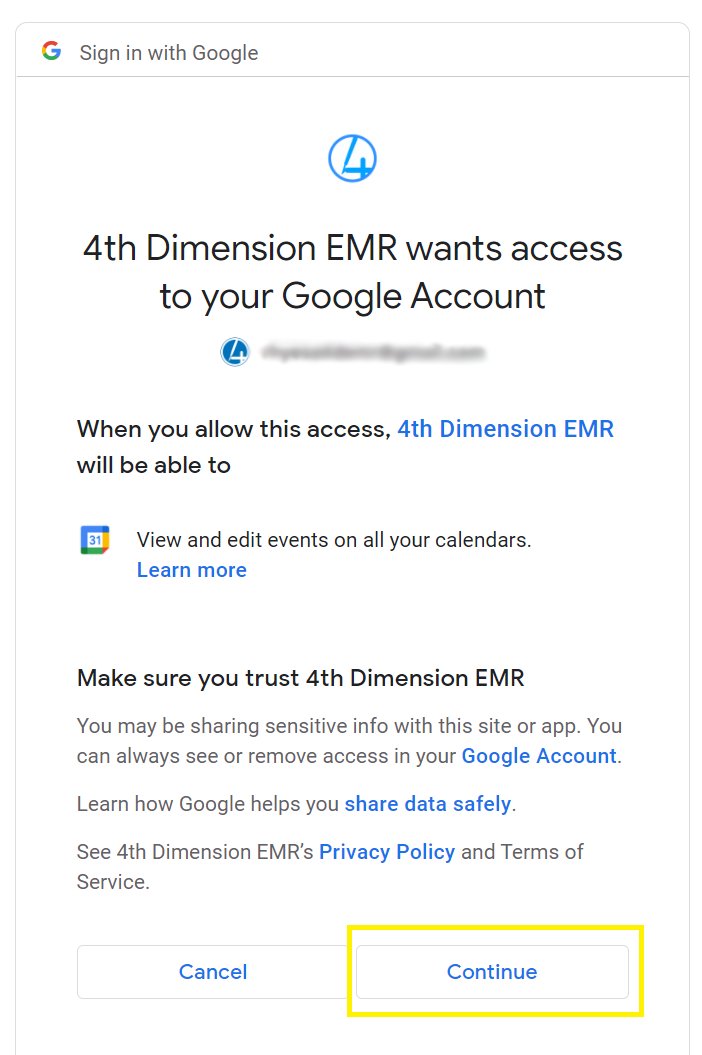
- When prompted Approve 4D EMR to access your calendar by clicking Continue
- Steps 2-5 can be repeated for each 4D EMR Calendar you wish to sync.
To Disable the Google Calendar Sync follow these steps:
- Go to Practice > Settings > Integrations and then click on the Google Calendar Sync tile
- Click the Edit/Disable button
- Click the Revoke button to the right of the Calendar