Help Center
What is a Provider Agent?
Provider Agents are clinical staff members that an ePrescribing provider has authorized to write non-narcotic prescriptions. Prescriptions written by a Provider Agent will include the provider's name and information and will be transmitted to the pharmacy.
Staff members that are not Provider Agents are able to queue prescriptions for a provider. However, they are not able to transmit them to the pharmacy. The provider will need to sign into 4D EMR and transmit the prescription.
Note: State regulation around e-precsribing varies state by state. New York requires all prescriptions to be reviewed and transmitted by a licensed provider. As a result, Provider Agents cannot be configured for offices in New York.
Configuring Provider Agents
Provider Agents can be configured by the Provider or an Administrator level user for DrFirst. Administrator level users are set by 4D EMR staff when registering practices for ePrescribing. Contact 4D EMR support with questions regarding DrFirst Administrative users.
Managing Provider Agents as a Provider
From a test patient's account:
- Go to Clinical > ePrescribe
- Click on the
 located in the top left corner then click on Utilities
 - Click on Manage Provider Agent Assignments
- Click on the Manage My Agents tab
- Clinical staff members who are not currently Provider Agents will be listed on the right under Available Staff. Staff who have already been authorized as Provider Agents will be listed on the left.

- To authorize a staff member, click the "Authorize" button
- To revoke a staff member's authorization, click the "Revoke" button
- Enter Signature Password and click Approve Changes
Managing Provider Agents as a DrFirst Admin User
From a test patient's account:
- Go to Clinical > ePrescribe
- Click on the located in the top left corner then click on Utilities
- Click on Manage Provider Agent Assignments
- Clinical staff members who are not currently Provider Agents will be listed on the right under Available Staff. Staff who have already been authorized as Provider Agents will be listed on the left.
- To authorize a staff member, click the "Authorize" button
- To revoke a staff member's authorization, click the "Revoke" button
- Check the box to certify that you are authorized to make changes regarding Provider Agents.
- Click Approve Changes
Configuring Prescriber Agent Preferences
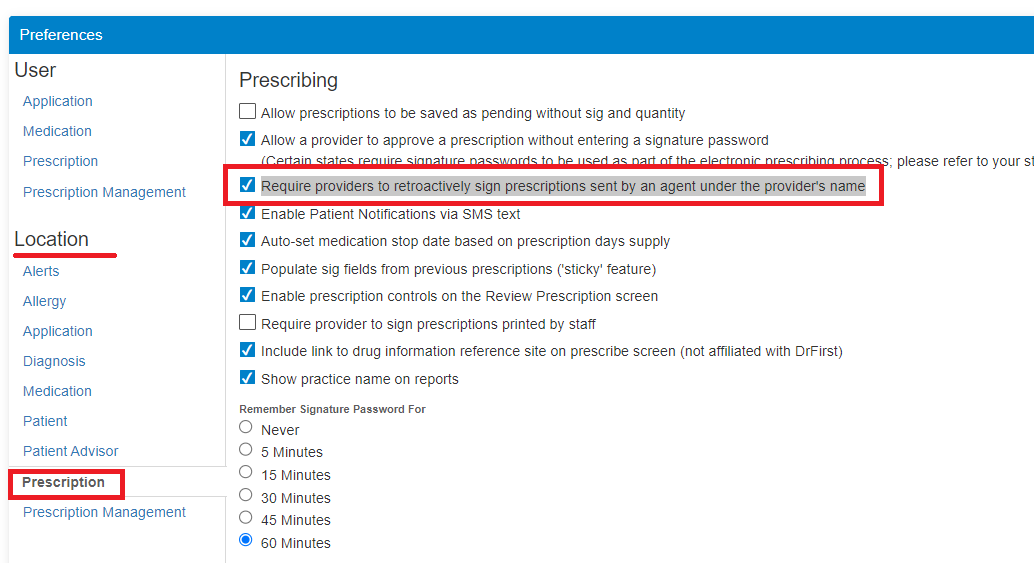
By default, after a prescriber agent transmits a prescription to the pharmacy, the Provider will receive an alert to retroactively sign the prescription. This retroactive alert can be turned off by a DrFirst Admin. To disable the setting:
- Open a test patient's chart then go to Clinical > ePrescribe
- Click on the located in the top left corner then click Settings
- Click on Preferences
- In the Location menu click on 'Prescription'
- Uncheck the box labled 'Require providers to retroactively sign prescriptions sent by an agent under the provider's name.'